
"Can I change my order?" might be the single most common email in your support inbox. A customer fat-fingers their apartment number, orders two of something they wanted one of, or realizes thirty seconds after checkout that they meant the blue one. None of it is a crisis — but every one of those messages lands on your team, and every reply takes time you'd rather spend elsewhere.
The frustrating part is that most of these changes are tiny. The customer isn't asking for the moon; they just want to fix a digit in their address or swap a size. So why does it take a back-and-forth email thread to get it done?
This guide breaks down what Shopify actually lets customers change on their own, what you should (and shouldn't) make editable, and how to move routine order edits off your team's plate with a self-service portal.
Why customers can't just edit their own Shopify orders
Here's the gap most merchants run into: Shopify gives customers a place to view their orders, but not to change them.
In the customer account area, a shopper can see their order history, check fulfillment status, and track a shipment. What they can't do is open an order and edit it. There's no native "change my address" or "remove this item" button on the customer's side. Every one of those requests has to route through you.
On the merchant side, you can edit an order from the Shopify admin before it's fulfilled — adjust quantities, add or remove line items, update the shipping address. But even that has limits. You can't simply switch a line item to a different variant (you remove it and re-add the right one), edits can shift taxes and discounts, and once an order is fulfilled, your options narrow fast.
So the default experience looks like this:
- Customer wants a small change.
- Customer emails, DMs, or opens a chat.
- An agent reads it, opens the admin, makes the edit, and replies.
- The customer waits — sometimes long enough that the order has already shipped.
Multiply that by every "wrong address" and "add one more" message and it adds up to real hours.
What customers most often want to change
When you look at the actual requests, they cluster into a short, predictable list:
- Shipping address — wrong house number, old address, typo in the postal code.
- Quantity — meant to buy one, bought two (or vice versa).
- Items — add a product they forgot, remove one they don't want, or swap a size or color.
- Billing details — a mistake on the billing address after checkout.
- Cancel a line (or the whole order) — usually a duplicate or a change of mind.
Notice that almost all of these are pre-fulfillment changes. The customer isn't trying to rewrite history — they're trying to catch a mistake before the package leaves the warehouse. That timing is the whole game, and it's exactly where self-service shines.
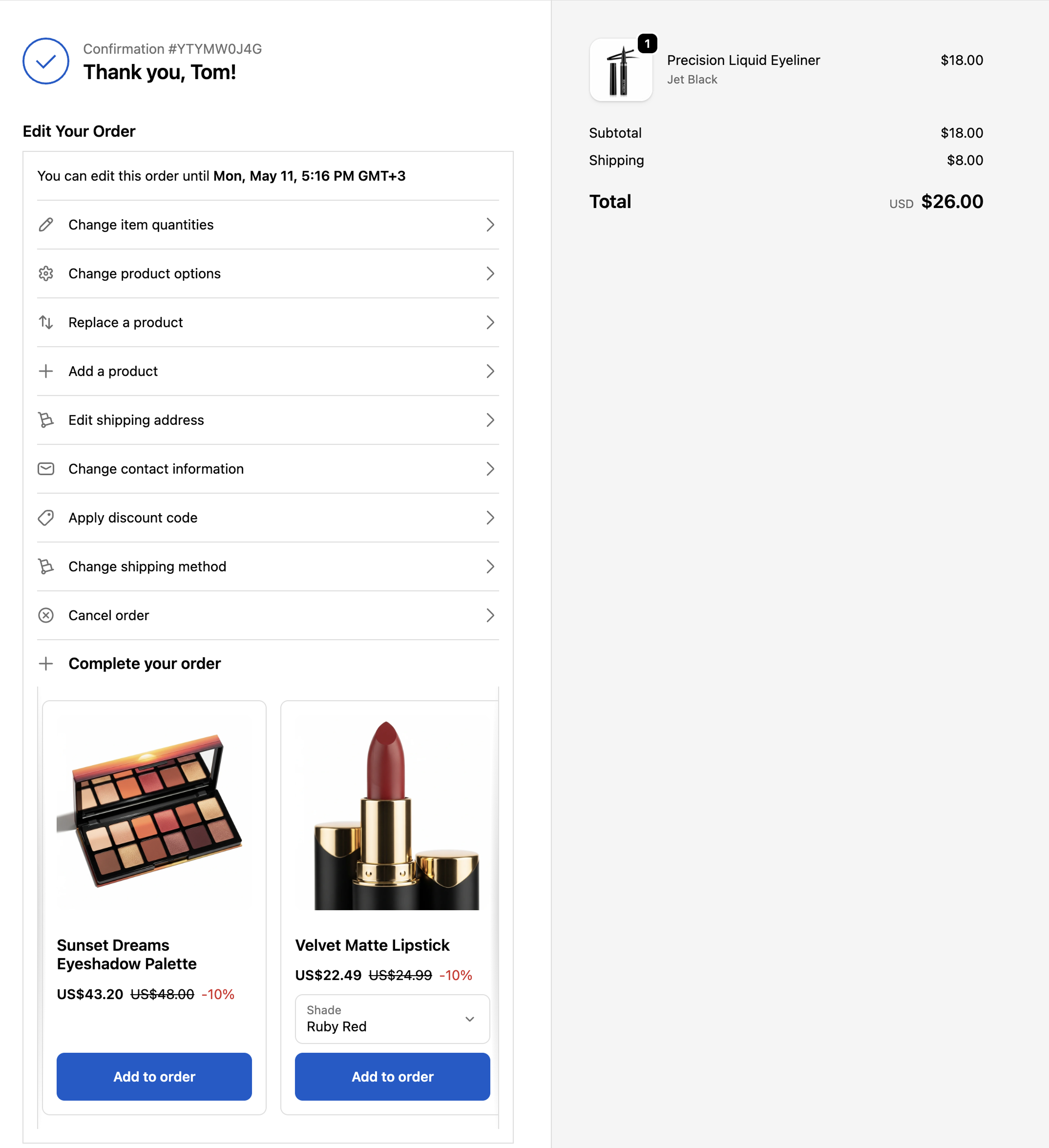
What you should let customers edit (and what to lock down)
Self-service doesn't mean "anything goes." The trick is to open up the low-risk, high-volume changes and keep guardrails on the rest.
Safe to hand over:
- Shipping address changes before fulfillment — the single most common request, and the one that most often saves a failed delivery.
- Quantity increases — more units, more revenue; make it easy.
- Adding items — a customer adding to their order is found money, not a problem. You can even nudge it along (more on that below).
- Variant swaps — size and color changes. If the new variant costs more or less, the difference is collected or refunded automatically.
Worth a guardrail:
- Removing items or reducing quantity, which triggers a refund — fine to allow; you just decide up front whether the difference goes back to the original payment method or to store credit.
- Address changes to a different country or region, which can affect shipping rates, duties, and tax.
- High-value orders, where you might want a longer edit window, tighter limits, or an automatic risk check before they ship.
Keep locked:
- Anything after fulfillment has started or a label is printed.
- Changes that would push an order below a discount or free-shipping threshold without recalculating.
The goal is to let the bulk of routine, low-risk edits happen instantly, while the genuinely tricky cases are locked, governed by rules you set, or flagged for a quick look before they ship.

Set a clear modification window
The most important setting in any self-service editing setup is the cutoff — how long a customer has to make changes before the order locks.
Customers genuinely want to know this. "Is there a time limit to modify my order?" and "Can I still change it before it ships?" are some of the most common questions shoppers ask, precisely because every store handles it differently. Ambiguity drives anxious emails; a clear answer prevents them.
A good cutoff is tied to fulfillment status, not just a fixed timer. For example:
- Edits open from checkout until the order is marked as being fulfilled.
- Or a fixed window — say 30 minutes after purchase — for stores that batch-process quickly.
Whatever you choose, state it plainly on the order confirmation and in the customer's account: "You can edit this order until it enters fulfillment." Setting the expectation up front is half the battle.
How to enable self-service order editing
You've got two realistic paths.
1. Keep doing it manually. Stick with the email-and-admin loop. It works at low volume, but it scales linearly with orders — more sales means more "can I change my order?" tickets, and your team absorbs every one.
2. Add a self-service editing layer. Give customers a portal where they can make the safe changes themselves, inside the window and guardrails you define. The routine edits resolve instantly; your team only touches the exceptions.
This is exactly what Triom Order Merger is built for. It adds self-serve order editing to your Shopify store, so customers can update their address, change quantities, add or swap items, and cancel — all within the rules you set:
- Configurable actions — switch each edit type on or off individually, so you decide exactly what customers can self-serve.
- Modification windows — set the cutoff once, and edits close automatically when the timer runs out or the order ships, whichever comes first.
- Held until the window closes — eligible orders are automatically held back from fulfillment while editing is open, so nothing ships before the customer has had their chance to fix it.
- Guardrails that run themselves — lock wholesale or marketplace orders, set conditional rules for high-value ones, auto-pause any edit Shopify re-rates as high risk, and roll back edits that were never paid for. The routine changes go through instantly; only the genuine exceptions reach your team.
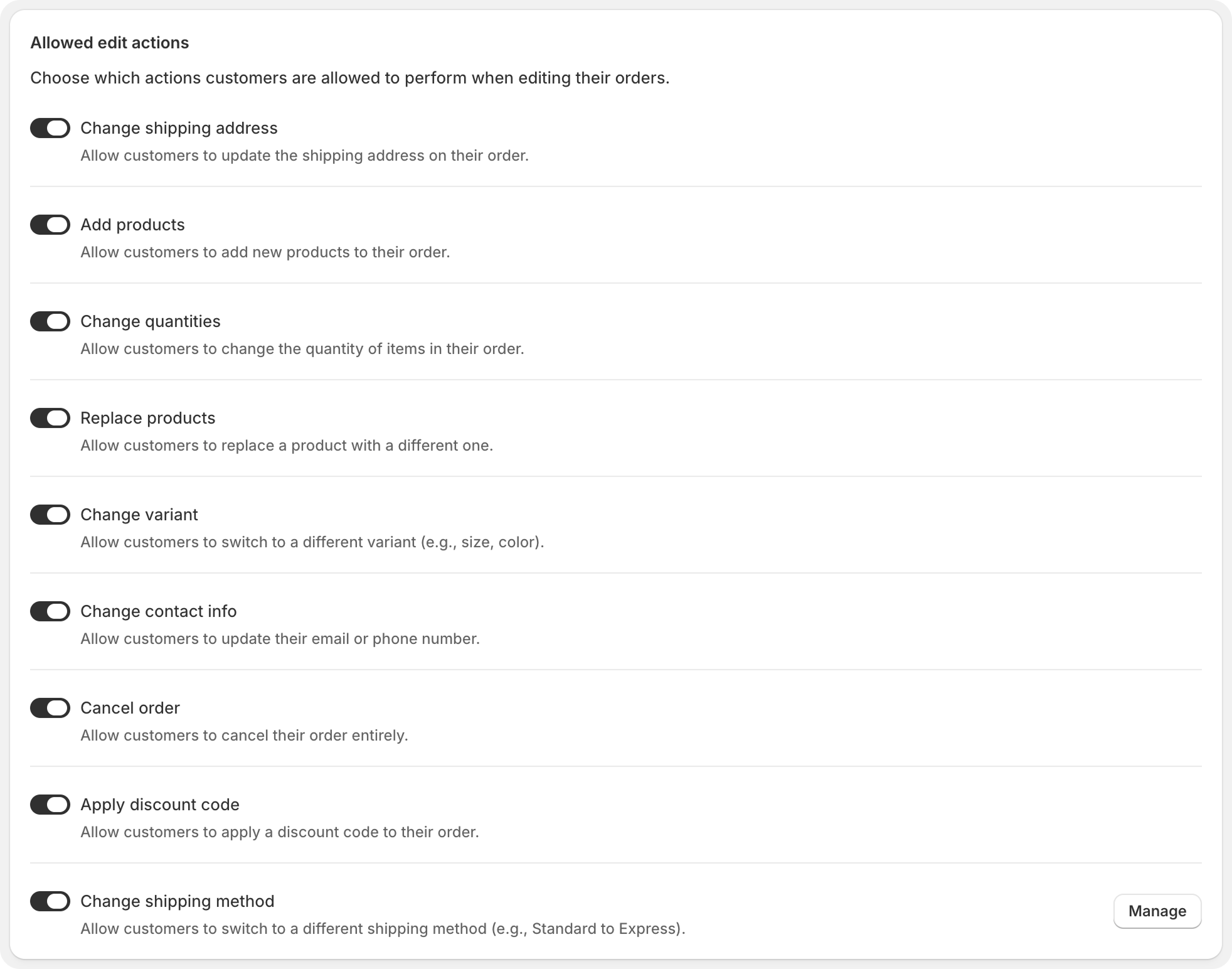
The result is fewer tickets, faster fixes for customers, and orders that go out the door correct the first time — which also means fewer reships and refunds down the line.
"We couldn't figure out a way to do this without customer service having to reach out to the warehouse and asking them to intercept the orders. Shopify Plus suggested this app for us and it does EXACTLY what we needed it to do."
— Interior Delights
Turn edits into extra revenue
There's an upside most merchants miss: the post-purchase edit window is one of the best moments to offer customers more, not just let them fix mistakes. They've already bought, their details are already on file, and they're actively looking at their order — the perfect moment to ask "want to add this too?"
Order Merger lets you show a "Complete your order" offer right inside the same edit experience, on both the Thank You page and the Order Status page. You pick the products — hand-selected add-ons (socks to go with the shoes, batteries to go with the toy), "customers also bought" recommendations, or complementary items — and add an optional discount to sweeten it. If the customer accepts, the item joins their existing order and they're prompted to pay the difference. No second checkout, no separate shipment.
So the same edit flow that quietly kills "can I change my order?" tickets becomes a place to lift your average order value: fewer support emails on one side, incremental revenue on the other.
It installs as a no-code app block on your existing Thank You and Order Status pages, you choose exactly which changes customers can make, and a single master switch turns the whole thing off whenever you want — and you can try it free for 7 days. See how order editing works or compare plans to find the right fit.
Frequently asked questions
Can customers edit a Shopify order after placing it? Not natively. Shopify shows customers their orders but doesn't let them change them — edits go through the merchant in the admin, or through a self-service editing app that you configure.
How long should customers have to change an order? Tie the window to fulfillment wherever possible: allow edits until the order is being prepared to ship. If you batch-process quickly, a short fixed window (like 30 minutes) works too. The key is to state the cutoff clearly so customers aren't left guessing.
What information can customers change? That's up to you. Common self-service edits include the shipping address, quantities, adding or swapping items, and cancellations. Higher-risk changes — large refunds, cross-border address changes — can be locked or governed by rules you set.
Does letting customers edit orders increase mistakes? Done with guardrails, it usually reduces them. When a customer fixes their own address before fulfillment, the order ships correctly the first time — avoiding the failed deliveries and reships that manual, after-the-fact edits often cause.
Can customers add more products while editing their order? Yes — and you can actively encourage it. Order Merger can show a "Complete your order" offer inside the edit flow on your Thank You and Order Status pages, with products you choose and an optional discount. Anything a customer adds joins their existing order and they pay the difference, with no second checkout — turning a routine edit into a lift in average order value.
